
How to turn on auto accept on FACEIT
FACEIT itself has no auto accept setting, so it comes from a browser extension. In PreMatch it takes the 3 steps below (it is off by default). The extension then presses Accept for you and makes sure the match is not lost: if the Match found window is left unanswered, it alerts you loudly and sends a Telegram message. So you can step away for a moment while queuing — but once the match is accepted you still have to join the server in time, so stay close.
- Install PreMatch from the Chrome Web Store or from Firefox Add-ons.
- Open the PRE/MATCH window (the extension icon on the browser toolbar) and go to the Settings tab.
- Under Match, turn on Auto-accept. Watchdog and Sound are on there by default.
📲 Send to another PC / remind me via Telegram
The extension installs in a desktop browser. The bot will send you the link and remind you tonight.
After the three steps
That is it: auto accept works while a faceit.com tab is open. Optionally connect the Telegram bot so Match found reaches your phone too (see below). You can test it first under Settings → Test → Match found.
How it works
The extension watches the faceit.com page. When the Match found window appears, PreMatch presses Accept in it after a couple of seconds and checks that FACEIT took the click. If not, it tries once more. Only the button in the found-match window is pressed: lobby and party invites are never accepted.
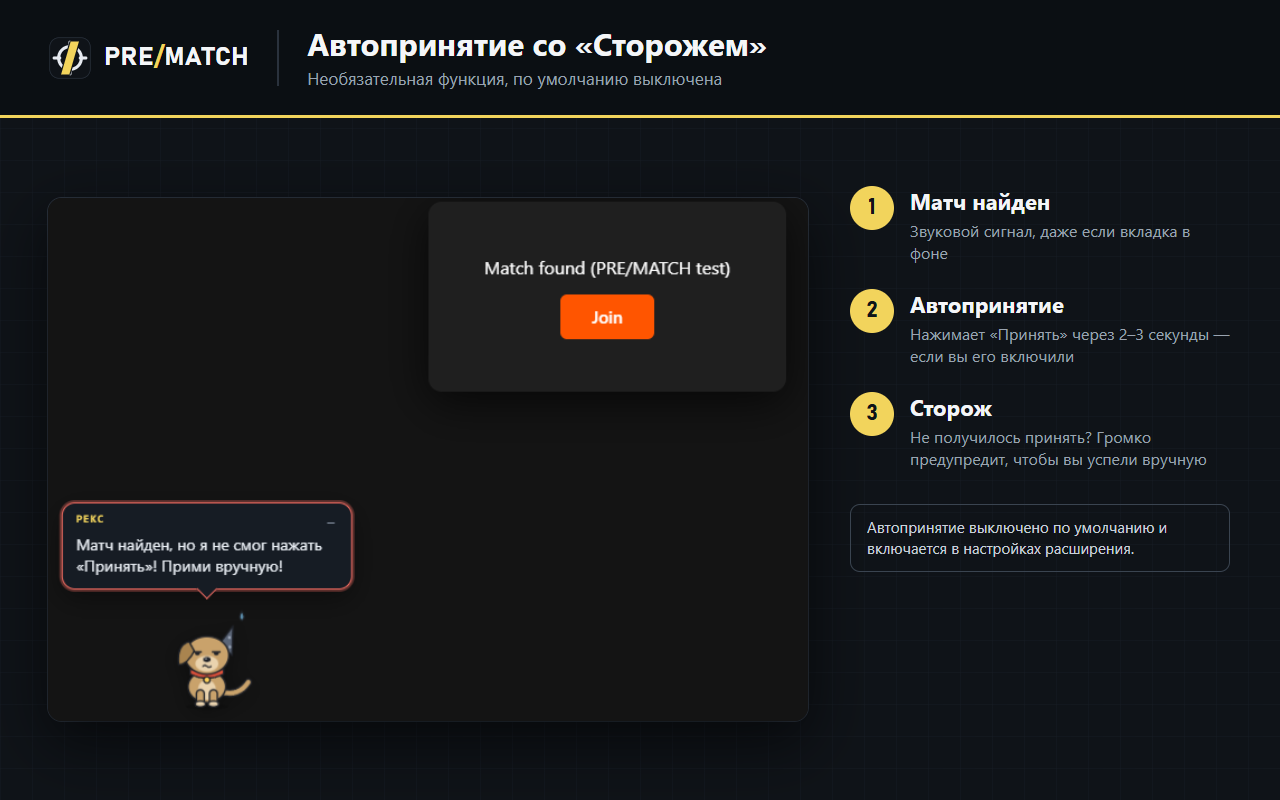
Watchdog: when accepting fails
FACEIT sometimes changes how the window looks, and then the button may not be found. Watchdog is on by default: if the Match found window is open but the Accept button could not be found or the click did not work, it sounds a loud alert, shows a browser notification, your companion says so on the page and the Telegram bot sends a message. Even without auto-accept, every found match plays a sound and the bot writes “Match found”. You can test it in advance: Settings → Test → Match found shows a test window, and Broken accept shows one the extension cannot accept.
What each switch does
- Auto-accept: off by default. Presses Accept 1.5–2.5 seconds after the window appears.
- Watchdog: on by default. Presses nothing; it only raises the alarm if accepting failed.
- Sound: on by default. A beep for every found match.
- Telegram: optional. “Match found” messages, Watchdog alerts and the post-match review; each can be switched off separately.
If you would rather not automate anything, leave Auto-accept off: the sound, Watchdog and Telegram work without it.
How to connect Telegram
- In the extension window, press Connect Telegram.
- The PreMatch bot opens; press Start in it.
- In the settings, pick what it should message you about: Match found, Match review, Watchdog.
If Telegram is only on your phone, the extension window shows a QR code: point the phone camera at it or copy the link.
If auto-accept did not press the button
- Check that Auto-accept is on and reload the faceit.com tab.
- Run the test: Settings → Test → Match found. The test window should be accepted on its own.
- The extension recognises the window by its text. It knows FACEIT’s English and Russian interface and several other languages. If yours is a less common one, switch FACEIT to English and run the test again.
- If FACEIT changed the window and the button cannot be found, Watchdog goes off, as long as it still recognises the window by its “Match found” text: accept the match by hand. The texts the extension looks for can be updated from our server, without a new extension version.
What it needs to work
- The browser is open, a faceit.com tab is open and you are logged in.
- The computer does not go to sleep: a sleeping computer presses nothing.
- The alert plays even when the tab is in the background. But browsers slow down background tabs, so for auto-accept it is more reliable to keep faceit.com in its own window than in a minimized tab among a dozen others.
Is it safe
PreMatch works on faceit.com (and, if you turn it on, on Steam profiles) and does not touch the game or the anti-cheat. But FACEIT’s rules are ambiguous about automation, so auto accept is off by default; turn it on at your own risk. Watchdog never presses anything, it only warns you, so it can stay on all the time.
Try PreMatch for free
For Chrome, Edge, Opera, Yandex Browser and Firefox. No sign-up — it works right after install.
📲 Send to another PC / remind me via Telegram
The extension installs in a desktop browser. The bot will send you the link and remind you tonight.
All features and the FAQ are on the PreMatch FACEIT extension page.
Questions
What happens if I miss a match?
FACEIT may give you a queue cooldown. The PreMatch watchdog alerts you with a sound and a Telegram message so you still have time to accept by hand.
Is auto accept paid?
No, auto accept, Watchdog and Telegram alerts are free.
Will PreMatch accept a party invite?
No, only a found match. Lobby and party invites stay up to you.
Does auto-accept work when FACEIT is open on my phone?
No. The extension runs in a desktop browser and accepts the match there. On your phone you can get messages from the Telegram bot.
Read next
- Best FACEIT extensions: Repeek, FACEIT FORECAST, GRIND and PreMatch compared
- How much Elo do you get for a win on FACEIT
- How to see opponent stats on FACEIT before the match starts
- FACEIT AC not starting: what to do
Free tools: FACEIT Finder · FACEIT Elo calculator · SteamID converter
Updated: 2026-11-26